
myGazeby myVoice

Eye-gaze activities for iPad and Windows

Purposeful play. Meaningful choices.

Develop early eye-gaze skills through engaging, responsive play. myGaze brings together 30 activities across five levels, from cause and effect to choice-making and control.

On your iPad, search the App Store for myGaze

  • Designed by a speech-language pathologist
  • No account or advertising
  • Works offline
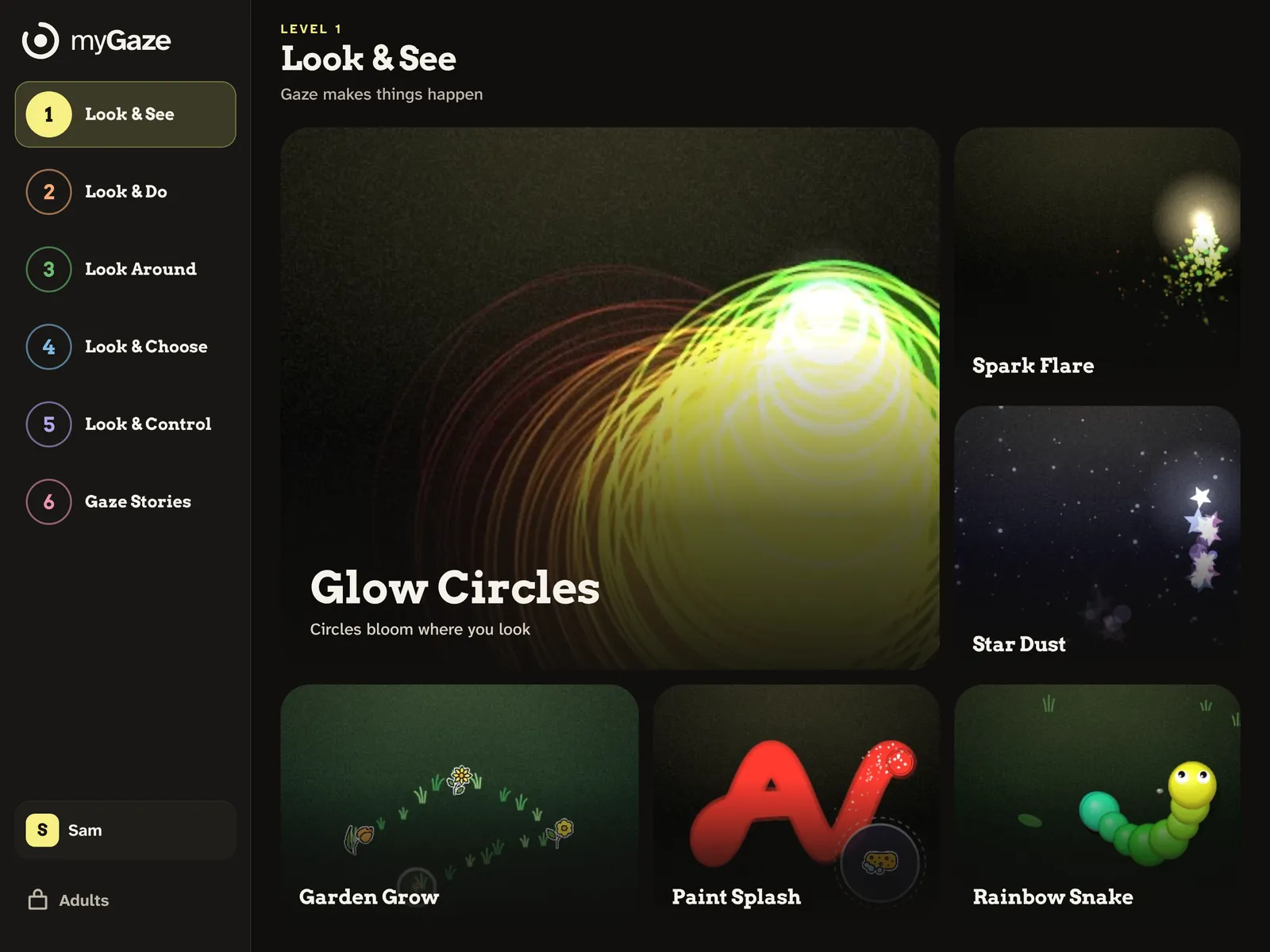
myGaze on an iPad: the home screen, with five levels and Gaze Stories down the side and Look & See's activities as large picture tiles
Hold a look on a tile to complete the progress ring and select an activity.
activities
30
levels
5
Gaze Stories
4

Works with

  • iPadOS 15+
  • Windows 10/11
  • Eye gaze
  • Touch & mouse

How eye gaze works

A look becomes a choice

Clear visual feedback helps learners explore how looking, holding and selecting work together.

  1. 01

    Look

    A compatible eye tracker translates the learner's gaze into pointer movement, with a visible cursor to guide interaction.

  2. 02

    Hold

    Holding a look on a target fills a progress ring. Adjustable dwell time lets you set how long a look takes to make a selection.

  3. 03

    Select

    The activity responds to the selection with light, sound or movement, making the connection between gaze and action clear.

Five levels

From exploration to intentional control

Five levels organize activities around key eye-gaze skills. Choose a starting point that suits the learner and explore further as their skills develop.

  1. Level 1

    Look & See

    Cause and effect

    Immediate visual responses introduce cause and effect as circles appear, sparks follow the gaze and paint fills the screen.

    For example: Glow Circles · Spark Flare · Paint Splash

  2. Level 2

    Look & Do

    Finding a target

    Single-target activities encourage purposeful looking, with clear feedback when the learner finds a balloon, star or face.

    For example: Balloon Pop · Peekaboo Star · Splat Faces

  3. Level 3

    Look Around

    Searching the screen

    Activities invite learners to search across the screen, locate sounds and explore scenes at their own pace.

    For example: Sound Hunt · Farmyard · Torchlight

  4. Level 4

    Look & Choose

    Making a choice

    Activities present multiple options with distinct results, giving learners opportunities to practice intentional choice-making.

    For example: Marble Run · Dress Up · Drum Kit

  5. Level 5

    Look & Control

    Steering and sequencing

    Extend gaze control through activities that involve steering, sustained interaction and sequences of actions.

    For example: Road Trip · Magic Potions · Beat Pads

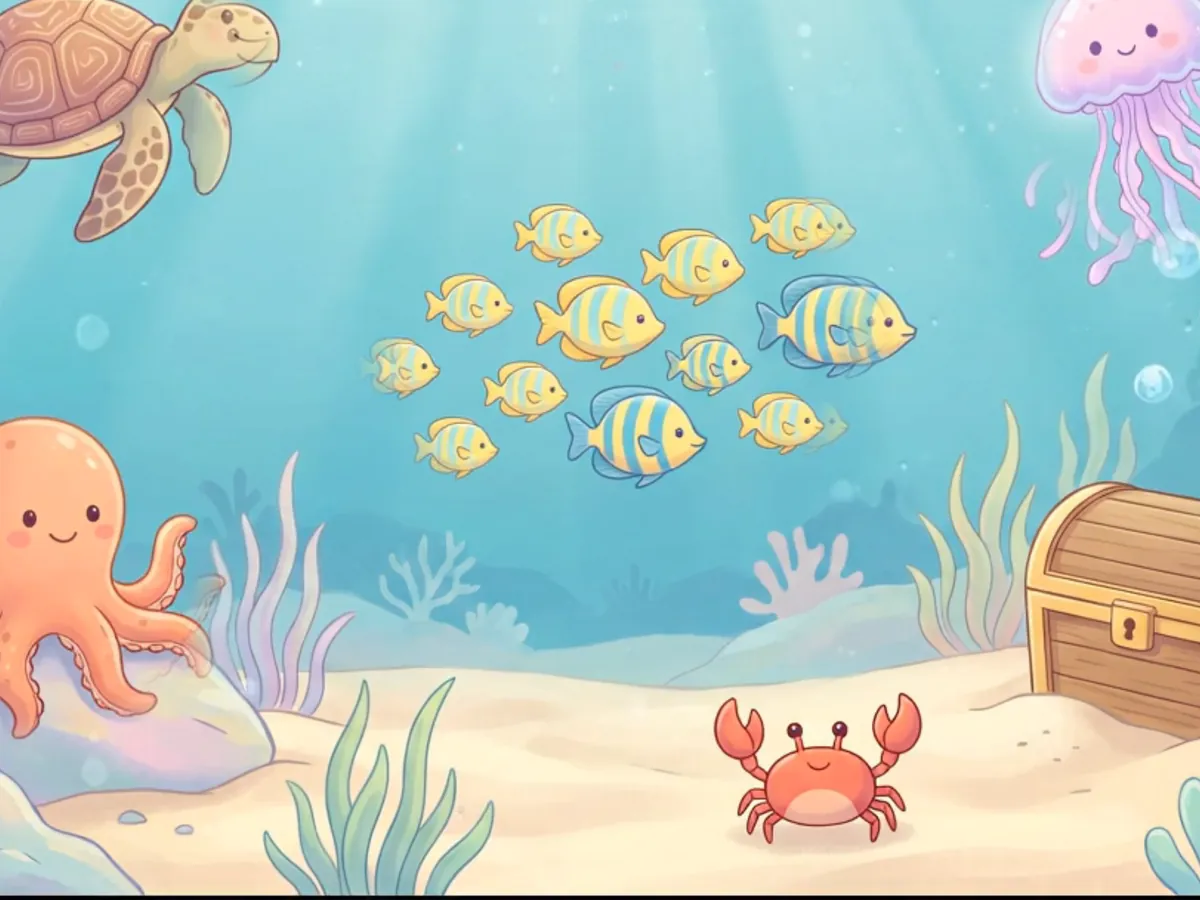
Under the Sea, a Gaze Story: a painted reef with a turtle, a jellyfish, an octopus, a crab and a shoal of fish

Gaze Stories

Four worlds to explore

Illustrated scenes invite self-directed exploration. Characters respond to gaze with movement, speech and spoken names.

  • Down on the Farm
  • In the Garden
  • Night Sky
  • Under the Sea

Inside myGaze

Engaging activities. Clear feedback.

Illustrated scenes and responsive activities pair visual exploration with purposeful interaction.

myGaze Farmyard: a painted farm with a cow, sheep, pig, hen, duck and horse around a red barn

Look Around

Exploration with a clear response

Farmyard encourages visual exploration through familiar animals and responsive animation. Each animal moves and makes a sound when selected; finding them all begins a parade.

  • Animal sounds, with names spoken or shown
  • Day, sunset or night on the farm
  • Choose which animals appear
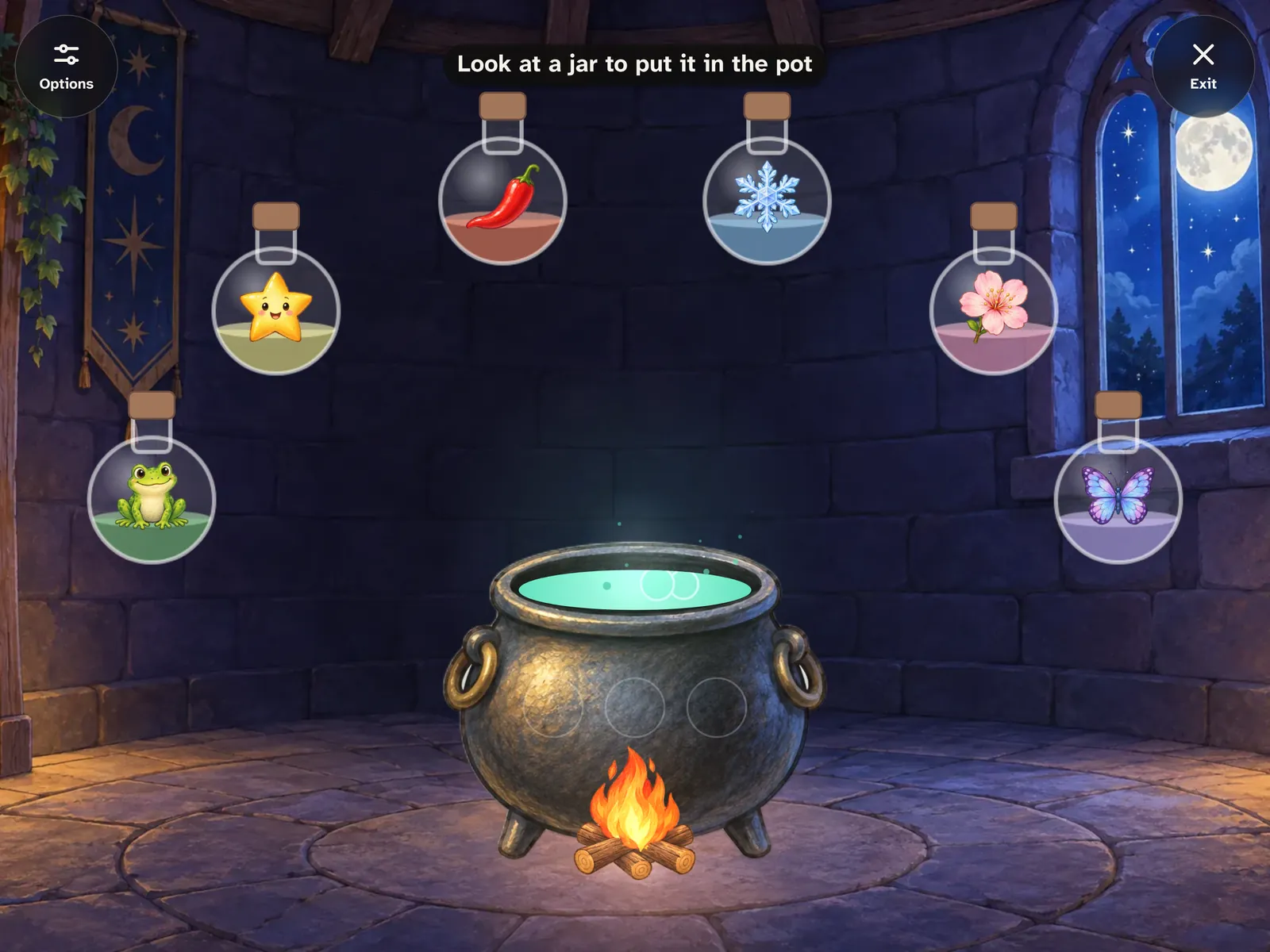
myGaze Magic Potions: seven potion jars around a cauldron, with the prompt Look at a jar to put it in the pot

Look & Choose

Practice in purposeful choice

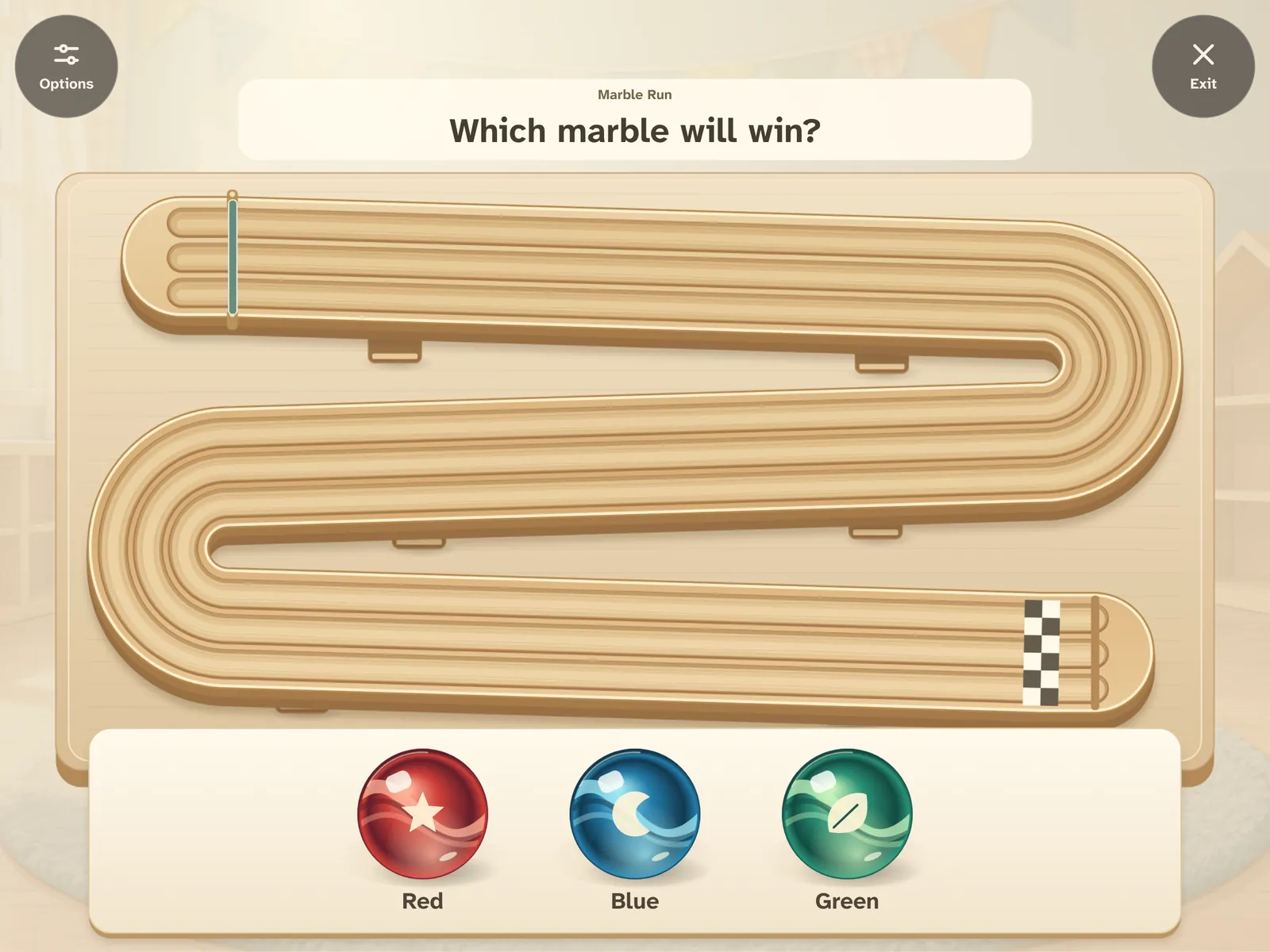
Select an ingredient for a potion or choose a marble for a race. Clear, visible outcomes help learners connect intentional looking with making a choice, a skill used in eye-gaze communication.

  • From two choices up to six
  • Visible feedback for each selection
  • Names can be read aloud
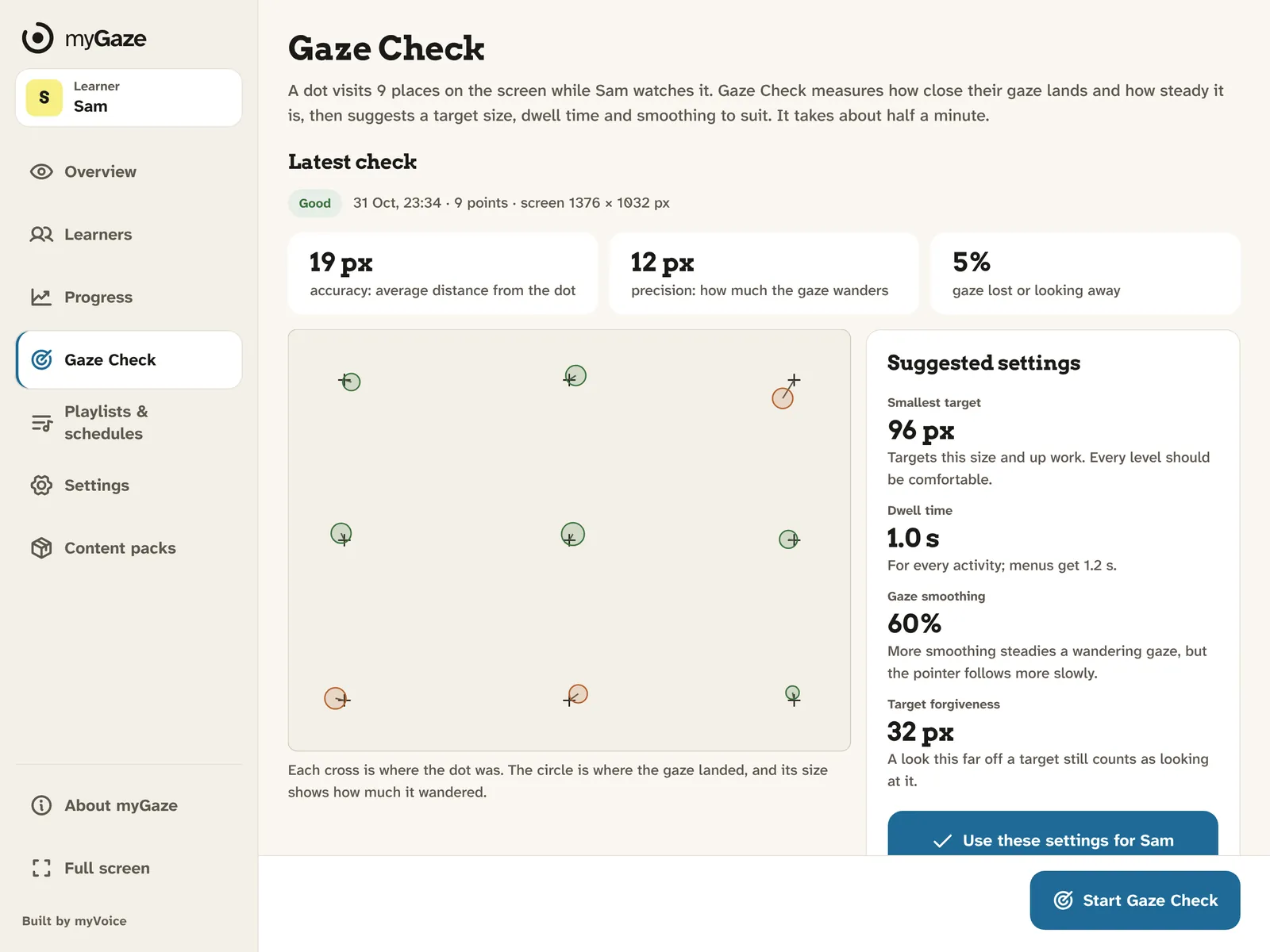
myGaze Gaze Check: a map of nine points showing where the gaze landed, with suggested settings of a 96 px target and a 1 second dwell

Personalised setup

Informed settings with Gaze Check

A brief nine-point check measures gaze accuracy and steadiness, then recommends target size, dwell time and smoothing settings. Review the recommendations and apply them in one tap. The check takes approximately 30 seconds.

  • Gaze accuracy and steadiness summaries
  • Clearly explained setting recommendations
  • Repeat checks to review changes over time

For therapists, teachers and families

Designed to support every session

Access learner settings, session planning and progress reports through the hold-to-open Adults button, keeping the activity screen focused on the learner.

  • Settings tailored to each learner

    Personalise dwell time, lock-on, cursor style and target size for each learner, with activity-specific adjustments. CVI mode, calm mode and a flash guard provide additional display options. Playlists let you prepare activities before a session.

  • Progress you can share

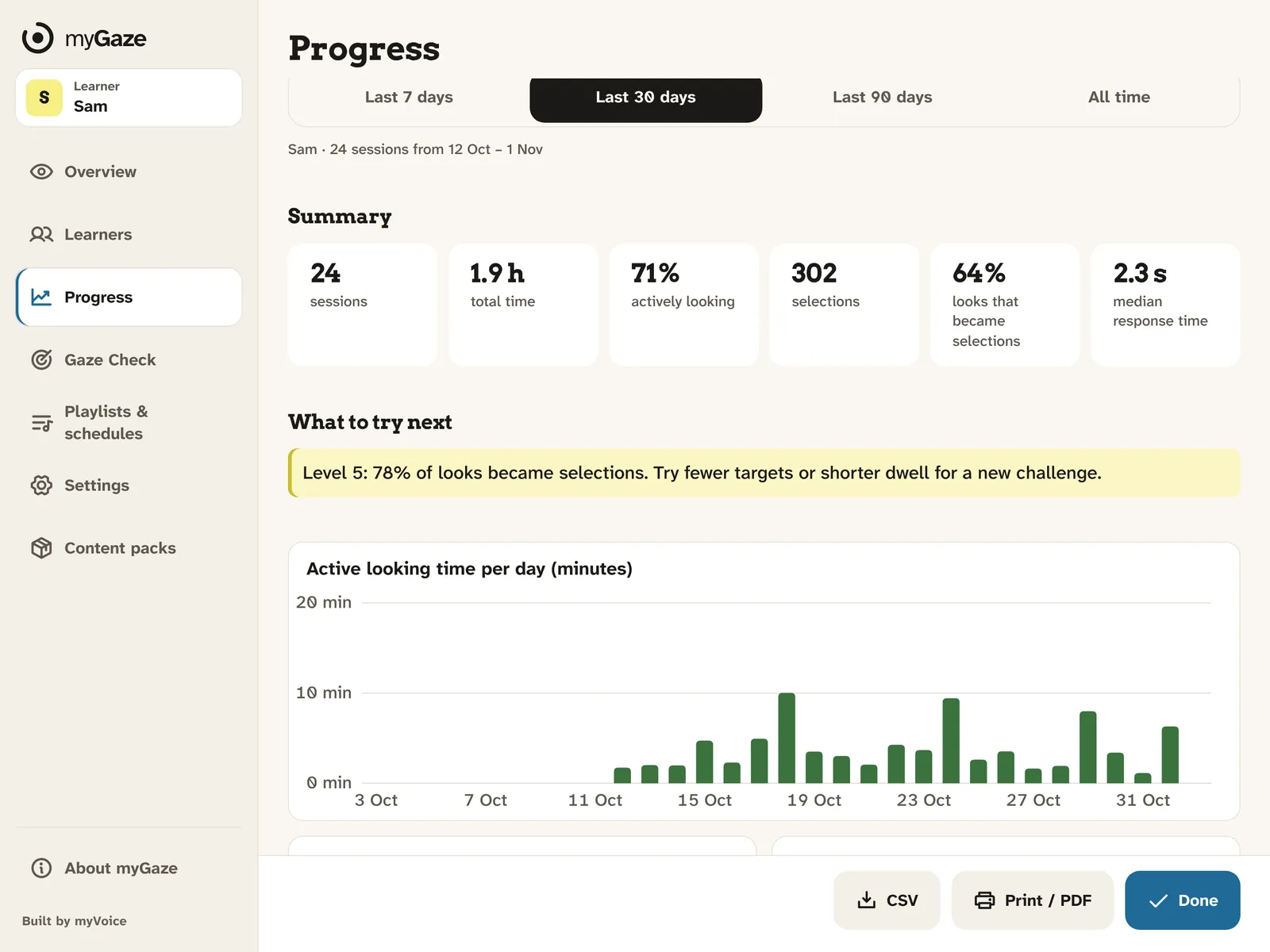
    Review session history, looking time, selections and simple goals. Print a report for team discussions or export a spreadsheet for your records.

  • Private by design

    No account, advertising or tracking. Learner profiles, settings and progress remain on the device, and all activities work offline.

Get myGaze

Choose myGaze for your device

Explore all 30 activities and four Gaze Stories on iPad or Windows.

myGaze for iPad

App Store

Purchase and updates through the App Store

  • For iPads running iPadOS 15 or later
  • Touch access or eye gaze with a compatible pointer-based tracker
  • Family Sharing and school volume purchasing
  • All 30 activities and four Gaze Stories

On your iPad, search the App Store for myGaze

Requires iPadOS 15 or later. Eye-gaze access requires a compatible tracker that controls the iPad pointer.

myGaze for Windows

$10

One-time purchase. No subscription.

  • For Windows 10 and 11 PCs and tablets
  • Mouse, touch or a compatible pointer-based eye tracker
  • Webcam-based gaze with GazePointer
  • Full-screen app with free automatic updates

Requires Windows 10 or 11 and support for installing desktop apps. Secure payment through Stripe, with download access after checkout.

Product information

Frequently asked questions

What devices can I use?

myGaze is available for iPads running iPadOS 15 or later and Windows 10 or 11 PCs and tablets. Windows devices must allow desktop app installation.

Do I need an eye tracker?

No. You can use touch on an iPad, or a mouse or touchscreen on a Windows device. To use your eyes to control the activities, you will need a compatible eye tracker or gaze-control software.

Will my eye tracker work with myGaze?

myGaze works with eye trackers that move the on-screen pointer. It does not require a specific brand. Your tracker must also be compatible with your iPad or Windows device.

Can I use a webcam for eye tracking?

On Windows, you can use GazePointer software with a compatible webcam to control myGaze. You will need to install and set up GazePointer separately.

Is there a subscription?

The Windows app is a one-time $10 purchase with free automatic updates. For iPad pricing, see the App Store listing.

How do I download myGaze?

For iPad, download myGaze from the App Store. For Windows, your download link appears after checkout and is also sent to you by email.

Does myGaze work offline?

Yes. Once downloaded, all activities work without an internet connection. You will need internet access to download the app and receive updates.

Do I need an account?

No. Learner profiles, settings and progress are saved on your device. There is no advertising or tracking.

How can a school or clinic purchase myGaze?

Schools can purchase the iPad app through Apple's volume purchasing program. For Windows purchases, contact myVoice Speech Therapy using the contact form on our home page.

A purposeful place to begin.

Begin with Look & See or choose an activity that matches the learner’s current skills. Explore at their pace.

On your iPad, search the App Store for myGaze

Support Privacy policy